 EXT.01 — Web → PDF
Convert Any Webpage to PDF — Free, Local, No Watermark
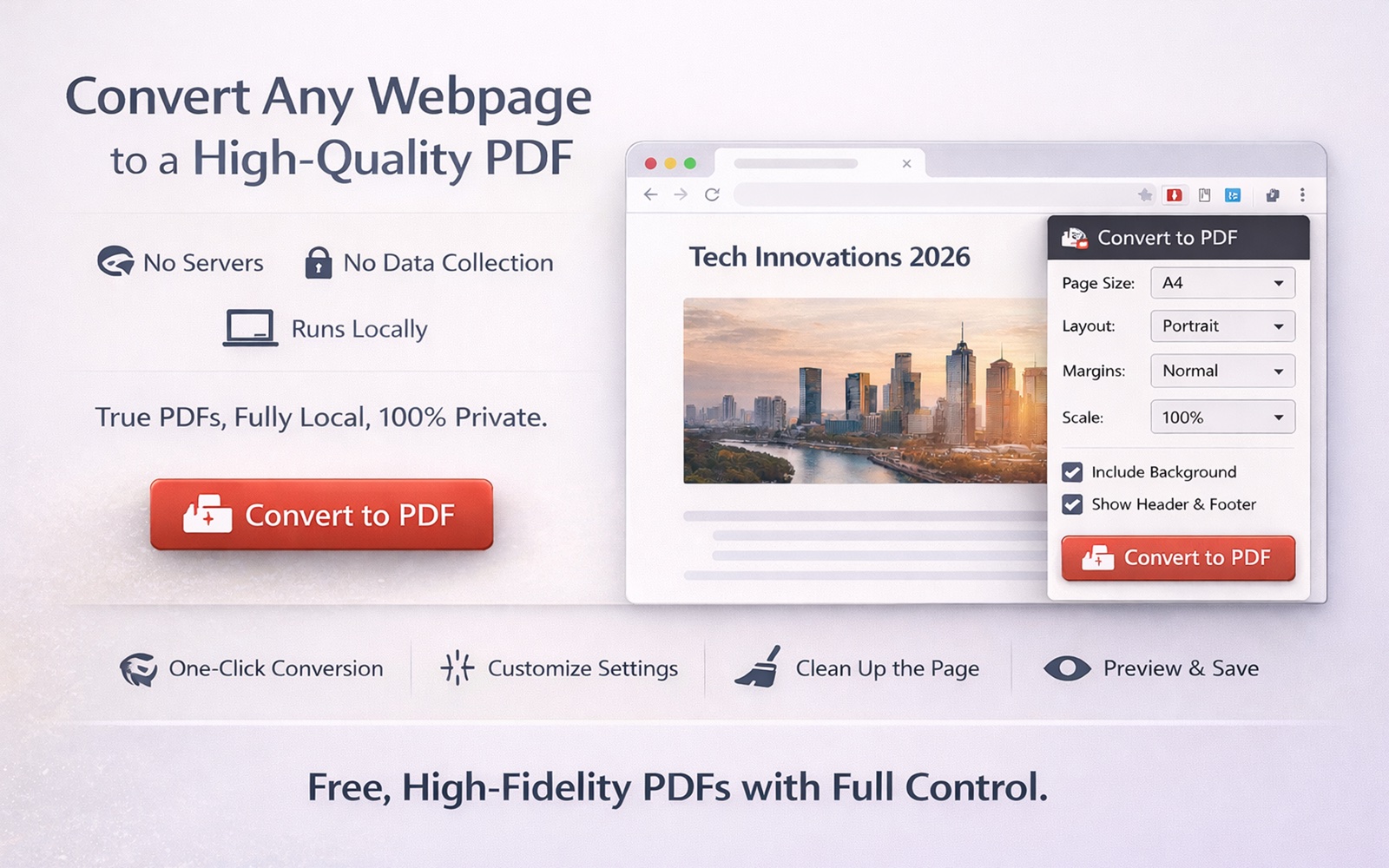
The free Chrome extension to convert any webpage to PDF in one click. Use it as a web page to PDF converter, article saver, or change webpage to PDF for offline reading. Works on login-protected pages, handles lazy-loaded images, and removes ads before converting. Everything runs locally in your browser — no servers, no uploads, no account required.
The specifics.
Concrete behaviour, not benefit-soup. If we say a feature works, you can test it in 30 seconds and prove us wrong.
Convert webpage to PDF in one click
The fastest way to save any webpage as a PDF in Chrome. Click the extension, preview the output, download. No print dialog, no awkward page breaks, no missing content. Works on any site — including pages behind a login where server-based converters fail.
Remove ads & clutter before converting
Most free web to PDF tools save the page as-is — ads, banners, cookie popups and all. Our web page to PDF converter lets you click to remove any element (with undo) before export, or switch to Article Mode to strip everything except the main content. Finally get a clean PDF every time.
Real PDFs with selectable text & clickable links
Unlike screenshot-based extensions, this tool produces true PDFs with selectable text, working hyperlinks, and proper formatting — the same output you'd get from Chrome's internal print engine, with full control over margins, paper size, and scale.
100% local, 100% private
Zero data collection. Zero network requests. The entire conversion runs locally via Chrome's DevTools Protocol. Works on banking dashboards, email, internal tools — anywhere your data shouldn't leave the browser.
Three steps, under ten seconds.
Install the free Chrome extension
One click from the Chrome Web Store. No sign-up, no account, no credit card. Works on Chrome, Edge, Brave, Arc, and any Chromium browser.
Open the webpage you want to save as PDF
Navigate to any page — a news article, research paper, receipt, dashboard, or internal tool. Click the extension icon or press Ctrl+Shift+P.
Customize, preview, and download
Choose paper size (A3–Ledger), orientation, margins, and scale. Optionally remove ads or extract the article. Preview the PDF, then download — all in under 10 seconds.
People who actually need this.
Students & researchers
Save webpages as PDF for citation, offline reading, and annotation. Extract clean article content from news sites and blogs for research.
Professionals & knowledge workers
Convert web dashboards, reports, and receipts to PDF for records. Works on login-protected pages that server-based converters can't access.
Legal & compliance teams
Capture webpages as evidence with pixel-accurate formatting. Because conversion is 100% local, sensitive pages never leave your device.
Things people ask before installing.
Honest answers — including where we say no. If something here doesn't answer your question, email [email protected].
Is Convert: Web to PDF really free?
Yes. No trial, no subscription, no premium tier. Every feature is available the moment you install. The extension is funded by us, not by ads or your data.
Does it collect or track my browsing data?
No personal or behavioral data. After each successful conversion, the extension sends one tiny anonymous ping to our server containing only a random install token — no URL, no page content, no IP (Cloudflare strips it), nothing that traces back to you. We use that ping to count total daily conversions across the user base, nothing more. Outside of that one ping, the extension makes zero network requests and never sees what you're converting. Full disclosure on the privacy policy.
Does it work on login-protected pages like Gmail or banking dashboards?
Yes. Because conversion runs locally via Chrome's DevTools Protocol, the extension uses your already-authenticated browser session. Server-based converters can't do this — they only see public pages. This is the main reason to use a local extension over an online converter for any private content.
Will the PDF have selectable text and working hyperlinks?
Yes. The output is a true PDF generated by Chrome's own print engine — selectable text, copy/pasteable content, clickable links, and properly embedded fonts. Unlike screenshot-based extensions, the PDF is not a flat image.
How is this different from Chrome's built-in "Print to PDF"?
Chrome's print dialog struggles with lazy-loaded images, sticky headers, cookie banners, and modern CSS. This extension pre-scrolls the page so lazy images load, lets you click to remove ads or strip the page to its main article (Article Mode), and exposes finer control over margins, scale, and paper size. For simple pages, Chrome's built-in works fine — for everything else, this fills the gap.
Does it handle very long pages or infinite scroll?
Yes. The extension captures full-page content of any length, scaling to fit your chosen paper size. Infinite-scroll pages should be scrolled to the desired endpoint before triggering conversion.
How do I remove ads or unwanted page elements before exporting?
Open the extension and click "Article Mode" to automatically strip everything except the main content (using the Readability algorithm), or hover individual elements on the page to delete them one at a time (with undo).
What paper sizes are supported?
A3, A4, A5, Letter, Legal, Tabloid, and Ledger. You can also set orientation, margins, and scale per conversion.
Which browsers does it work on?
Any Chromium-based browser: Chrome, Microsoft Edge, Brave, Arc, Opera, Vivaldi. Firefox and Safari are not supported because the underlying APIs differ.
How do I uninstall it?
Right-click the extension icon and choose "Remove from Chrome", or visit chrome://extensions and click Remove. All locally-stored preferences are deleted with the extension.
How do I save articles as PDF?
Open the article in Chrome, click Convert: Web to PDF, and toggle Article Mode — the extension strips navigation, sidebars, ads, and related-story boxes automatically and gives you a clean PDF with just the headline, byline, and article body. Works on news sites, long-form outlets, Substack, Medium, arXiv, and blogs. For sites where Article Mode misses something, click any element in the preview to delete it before exporting.
Can it produce EAA-compliant / PDF/UA-ready PDFs?
The extension produces real, selectable-text PDFs — the foundation any accessibility team needs before tagging. Screenshot-based PDFs cannot be made EAA / PDF/UA compliant without full re-authoring, but true text PDFs can. Convert: Web to PDF uses Chrome's DevTools Protocol (Page.printToPDF) which preserves the text layer, reading order candidates, and hyperlinks — the accessibility team then runs the final tagging pass in their PDF authoring tool.
Have a more specific question? Our full FAQ covers 117+ answers — including site-specific guides (Twitter, Reddit, LinkedIn, Substack, Medium, Wikipedia, Notion), comparisons, and troubleshooting.
See the full FAQ →Install Convert: Web to PDF.
Free forever. No account. Two clicks. Uninstall in two more if it doesn't help.
Add to Chrome →